How to create glitch poster artwork
Create a glitch poster by separating its bright color edges, then shifting a few horizontal bands. Start with the finished lettering in one image: the Glitch browser demo applies effects to a single image layer.
This example uses RGB Split followed by Slice Shift. The headline and circular shape stay recognizable while selected strips break their alignment.
Start with the source poster
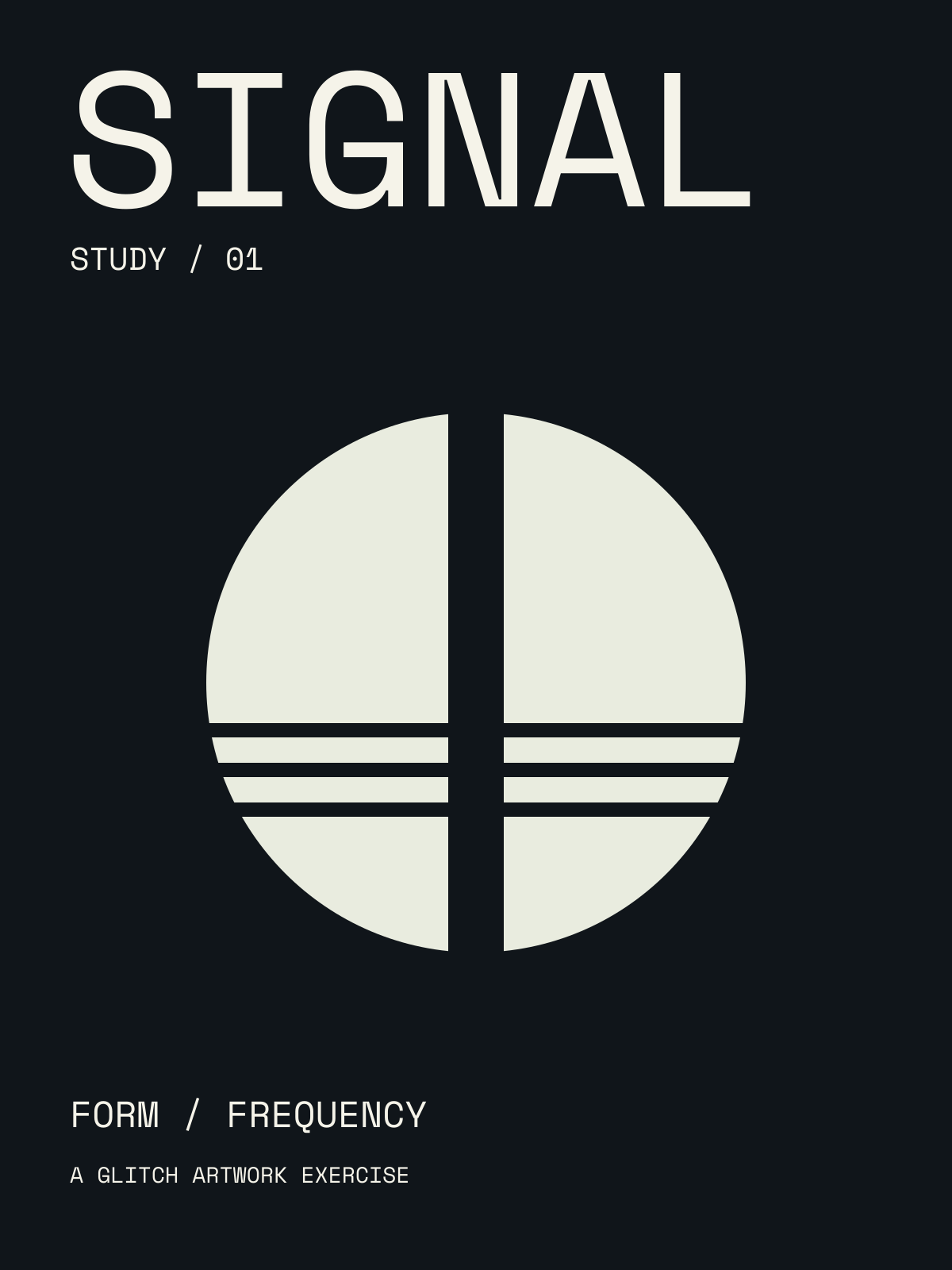
Download the source poster PNG
(1200 × 1600). It contains the word SIGNAL, a split circle, and small supporting type against a dark background. You can also prepare your own flattened PNG, JPG, or WebP in your usual design tool.

Source — a high-contrast graphic with large lettering, small type, and clear edges.
Open RGB Split in the demo and choose the downloaded image. Expand RGB Split in Active FX and turn Animate: RGB Split off. Leave playback paused at time 0. If the controls are crowded, collapse Active Layer to make room.
Give bright edges a colored fringe
Set Amount to 0.015. On this source, red and blue separate around the headline and the circular edge; the broad dark background remains comparatively quiet. Green stays aligned. This effect changes horizontal channel separation, not the position of an editable text object.

The RGB Split guide lists the current control range and default. Lower Amount if the smaller lettering looks like overlapping copies; increase it if color separation is the main subject of your design.
Break the alignment with Slice Shift
Add Slice Shift after RGB Split using the FX list. Turn Animate: Slice Shift off as well. Use these settings for the pictured result:
- Shift: 0.04
- Coverage: 0.35
- Band height: 4.50%
- Seed: 37
- Mix: 100%

Stage 2 — RGB Split followed by Slice Shift; the unchanged bands keep a reference to the original.
Compare the vertical split through the circle before and after Slice Shift: selected bands move sideways while other sections remain aligned. Keep Seed fixed while changing Shift or Coverage so you compare the same band arrangement. See the Slice Shift guide for current controls.
Check small type before exporting
Bypass Slice Shift, then RGB Split, to judge each change separately. The large headline survives this treatment better than the small footer text. If that footer contains essential information, reduce Amount and Shift further, or prepare a source with larger supporting type.
Use Quick Export to save a still, then inspect it at the intended viewing size. These examples were captured as PNGs at the source dimensions. The browser demo includes export; multiple image layers and the full collection library are reasons to explore Artfkt for Mac.
Try the poster recipe, or compare RGB Split with Block Displacement for a different kind of disruption.
How this example was made
The source graphics were made for these exercises with AI assistance and Space Mono lettering. The treatments shown are actual Glitch demo exports, captured with animation off and playback paused at the start. Settings describe these examples, not permanent defaults; rendering can vary by device.
Make something unexpected
Keep exploring in Artfkt.
Bring all collections and multiple image layers together in one Mac studio. Build a look, shape its motion, and save your next starting point.